image

Create Posts in Seconds with Beamer’s AI Content Generator

image

Jinwoo Park

August 26, 2025

Writing an update shouldn’t mean staring at a blank page or bouncing between tools. Sometimes you have the details ready, but finding the right words takes too long.

With Beamer’s AI Content Generator, you can go from idea to polished changelog post in seconds — without ever leaving Beamer.

What Is Beamer’s AI Content Generator?

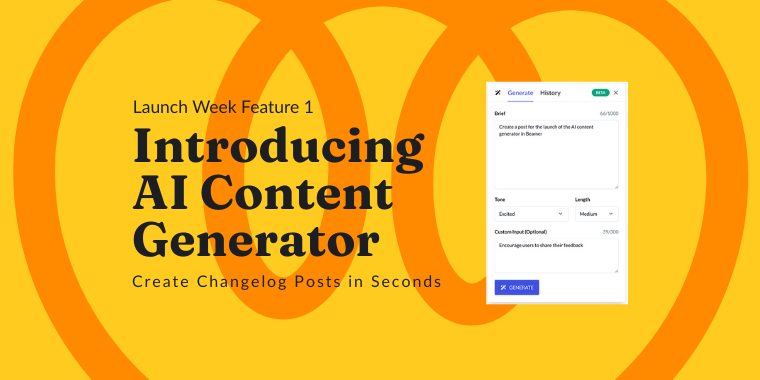
The AI Content Generator is built right into Beamer’s editor, helping you quickly create or improve changelog posts. Whether you need to generate a post from scratch or refine the text you already have, it delivers structured, on-brand copy in just a few clicks.

Here’s what it can do:

  • Generate new posts instantly – Start from a short brief and let AI create a well-structured update.

  • Refine existing copy – Improve, adjust tone, or change the length for copy already in the editor.

  • Match your voice – Choose from tone options like Professional, Friendly, Excited, Empathetic, or Concise.

  • Control the detail level – Select Short, Medium, or Long depending on how much context you want to give.

  • Custom instructions – Fine-tune the style, structure, or emphasis so every post feels on-brand.

How It Helps You

The AI Content Generator doesn’t just save time — it makes your product communication sharper and more consistent.

  • Faster turnaround – Create complete changelog posts in seconds.

  • Simplified workflow – Draft, refine, and publish directly inside Beamer.

  • Consistent messaging – Keep tone and structure aligned with your brand across every post.

  • Fewer tools, lower cost – No need to switch between Beamer and external writing apps.

[Insert screenshot of AI Content Generator in action]

How to Start Using the AI Content Generator

  1. Open a changelog post in Beamer — either a new draft or an existing one.

  2. Click the magic wand icon in the text editor to open the AI Content Generator panel.

  3. Choose:


    • Generate New – Enter a brief description (up to 1000 characters), select a tone and length, and click Generate.

    • Refine Copy – Use the text in your editor as the starting point and adjust tone, length, or details.

  4. (Optional) Add custom instructions such as “make it more conversational” or “add bullet points.”

  5. Click Generate or Refine to update  your post.

  6. Insert the generated copy using Paste in Editor or the Copy button to combine with your own edits.

  7. If you want a different version, click Regenerate (up to 5 times per session) or use Refine for smaller tweaks.

For more information, visit the Help Doc

Smarter, Faster Communication

At Beamer, we’re focused on helping you communicate clearly and efficiently. The AI Content Generator makes it easy to create updates that are both quick to produce and consistent with your brand — so you can keep your users informed without slowing down.

Already a Beamer customer? Try the AI Content Generator today and see how fast your next update can be.

Not using Beamer yet? Start a free trial and discover how easy it is to create, share, and measure your product communications — all in one place.

Sign In / Start Your Free Account

Jinwoo Park

Content Marketing Manager

This article is about Customer Engagement + customer feedback + Product Management + User Engagement + User Feedback

blog image

“Beamer is the perfect tool for SaaS companies to engage users and reduce churn. Beamer has helped us achieve huge improvements in click through rates, reductions in churn and increased upselling.”

Benny Waelput

Go-to-Market Marketeer

logos